Settings
Tap the gear icon in any tab's toolbar to open the Settings panel as a sheet. Settings are organized into sections.
Sound
Control how the app plays back chords and notes.
| Setting | Description |
|---|---|
| Sound Enabled | Toggle all sound playback on or off. |
| Volume | Adjust the playback volume from 0% to 100%. |
| Note Duration | How long each note rings out (300–1200 ms). |
| Strum Delay | The delay between strings when strumming a chord (0–150 ms). A shorter delay sounds like a quick strum; a longer delay sounds like a slow arpeggio. |
| Play on Tap | When enabled, plays the note immediately when you tap a fret on the Explorer fretboard. |
| Strum Down | When on, chords strum from the lowest string to the highest; turn it off to strum the other way. |
| Noise Gate | Controls how much background noise is filtered for the Tuner, Pitch Monitor, and Melody Notepad (0–100%, default 75%). Higher values filter more noise; lower values pick up quieter sounds. Increase in noisy environments or decrease in a quiet room for maximum sensitivity. |
Display
Customize the app's appearance and navigation.
Theme
Choose from four theme options:
| Theme | Description |
|---|---|
| Light | Light background with dark text. |
| Dark | Dark background with light text, easier on the eyes in dim environments. |
| System | Follows your device's system-wide light/dark mode setting. |
| High Contrast | An accessibility-focused theme with stronger color contrast, making text and UI elements easier to read. Adapts to your system light/dark preference. |
| Setting | Description |
|---|---|
| Show Tips | When enabled, a rotating "Did You Know?" card appears on the Explorer. |
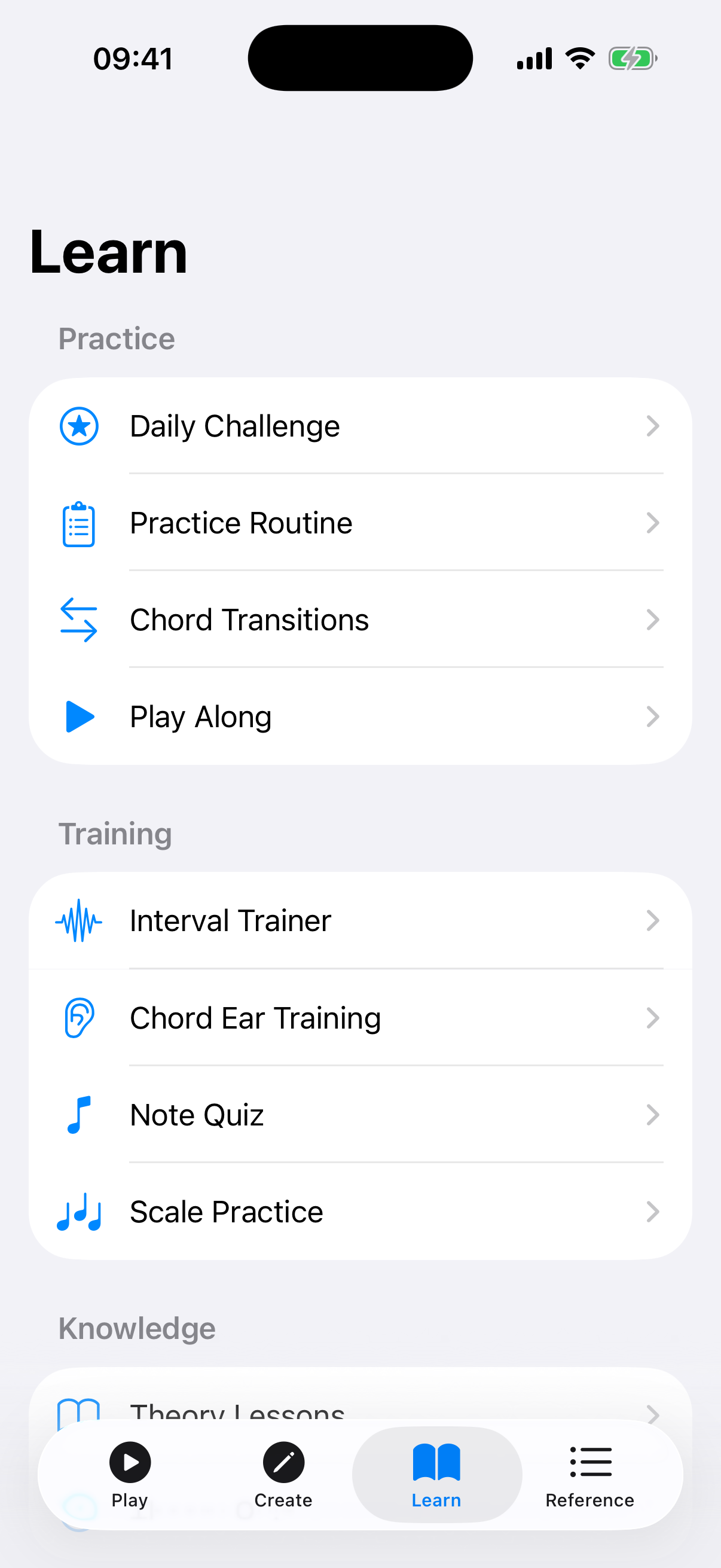
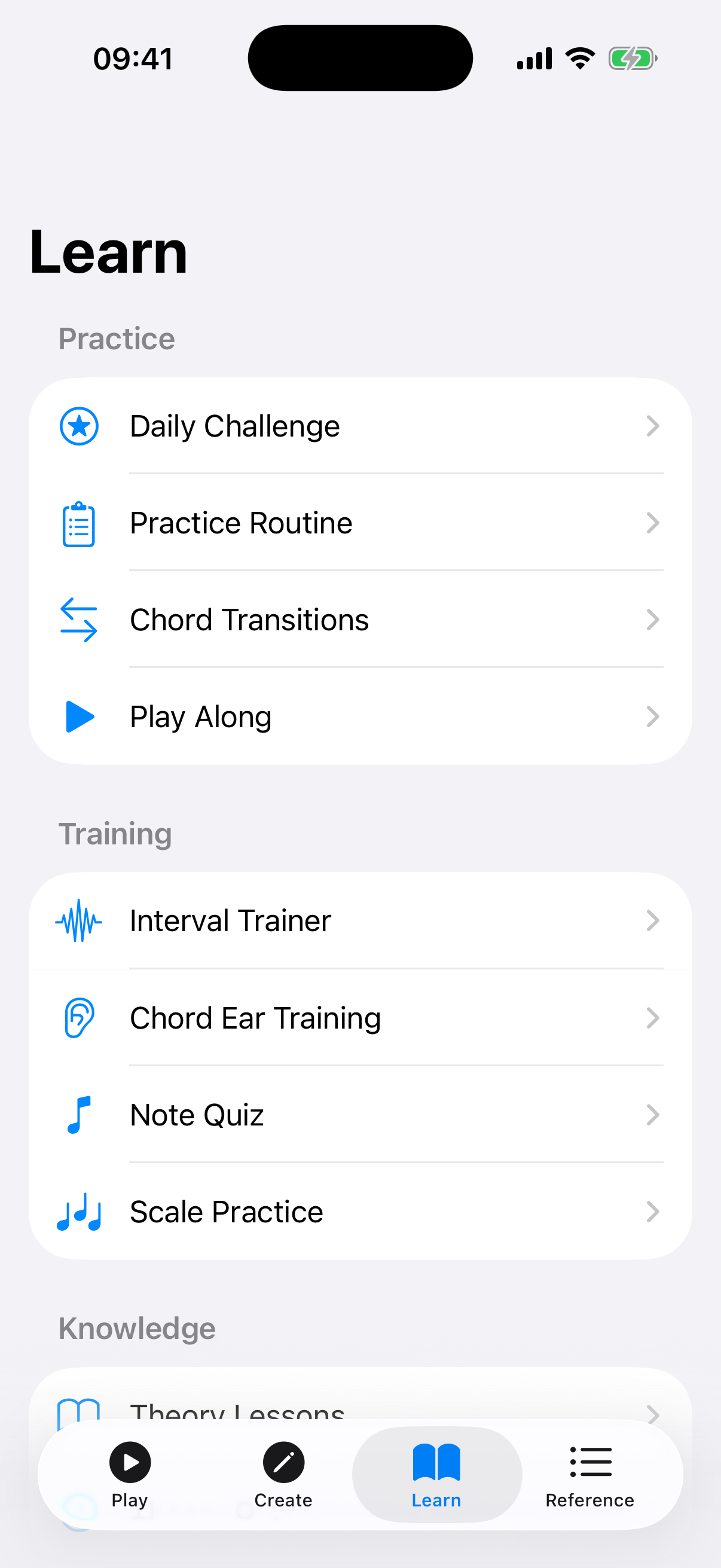
| Show Learn Tab | When enabled, the Learn tab (Theory, Quizzes, Ear Training, etc.) is visible in the tab bar. Disable to simplify navigation for experienced players. |
| Show Reference Tab | When enabled, the Reference tab (Capo Guide, Circle of Fifths, Glossary, etc.) is visible in the tab bar. |
The Settings panel also has a Language section for choosing the app's language.
Tuning
Pick a tuning Preset for your ukulele. The app adjusts the fretboard, chord detection, and playback accordingly. Eight presets are available:
| Tuning | Strings | Description |
|---|---|---|
| High-G (Standard) | G C E A (re-entrant) | The most common soprano/concert/tenor tuning with a re-entrant high G string. |
| Low-G | G C E A (low G) | Same notes but with the G string tuned an octave lower, extending the bass range. |
| Baritone (DGBE) | D G B E | Baritone ukulele tuning, matching the top four strings of a guitar. |
| D-Tuning (ADF#B) | A D F# B | A traditional alternative tuning, one whole step above standard. |
| Slack Key (GCEG) | G C E G | An open-G tuning for slack-key style playing. |
| Open A (AC#EA) | A C# E A | An open-A tuning. |
| Low A (GCEa) | G C E a | Standard notes with a low A on the bottom string. |
| Half-Step Down | F# B D# G# | Standard tuning lowered by a semitone. |
Tuner
The Tuner section has its own options: Auto-Start (begin listening when the tuner opens), Precision Mode, Auto-Advance (move to the next string automatically), Spoken Feedback, and an A4 Reference slider (415–465 Hz) for adjusting the reference pitch.
Fretboard
| Setting | Description |
|---|---|
| Left-Handed | Mirrors the fretboard so the nut appears on the right side, matching a left-handed player's perspective. |
| Show Note Names | Toggles note-name labels on the fretboard. |
| Allow Muted Strings | Allows generated voicings to include muted strings. |
| Last Fret | Sets how many frets the fretboard shows (12–22). |
Backup & Restore
Export all your data — favorites, songs, melodies, progressions, custom patterns, setlists, learning progress, and settings — to a JSON file, and restore it later. Restoring merges the backup with your current data without overwriting existing items.
Tips
- If you play a baritone ukulele, switch to the Baritone (DGBE) tuning so chord detection and playback match your instrument.
- Try the High Contrast theme if you find the default colors hard to read, especially in bright sunlight.
- Adjust the volume slider independently from your device volume for finer control over playback loudness.
- Disable the Learn and Reference sections if you want a simpler tab bar focused on playing and creating.