Melody Notepad
The Melody Notepad is a melody composer and sequencer with two input modes — Linear (tap or record notes one at a time) and Step Sequencer (fill a grid of 8 or 16 steps). Create melodies, loops, and rhythmic patterns, then play them back at any tempo.
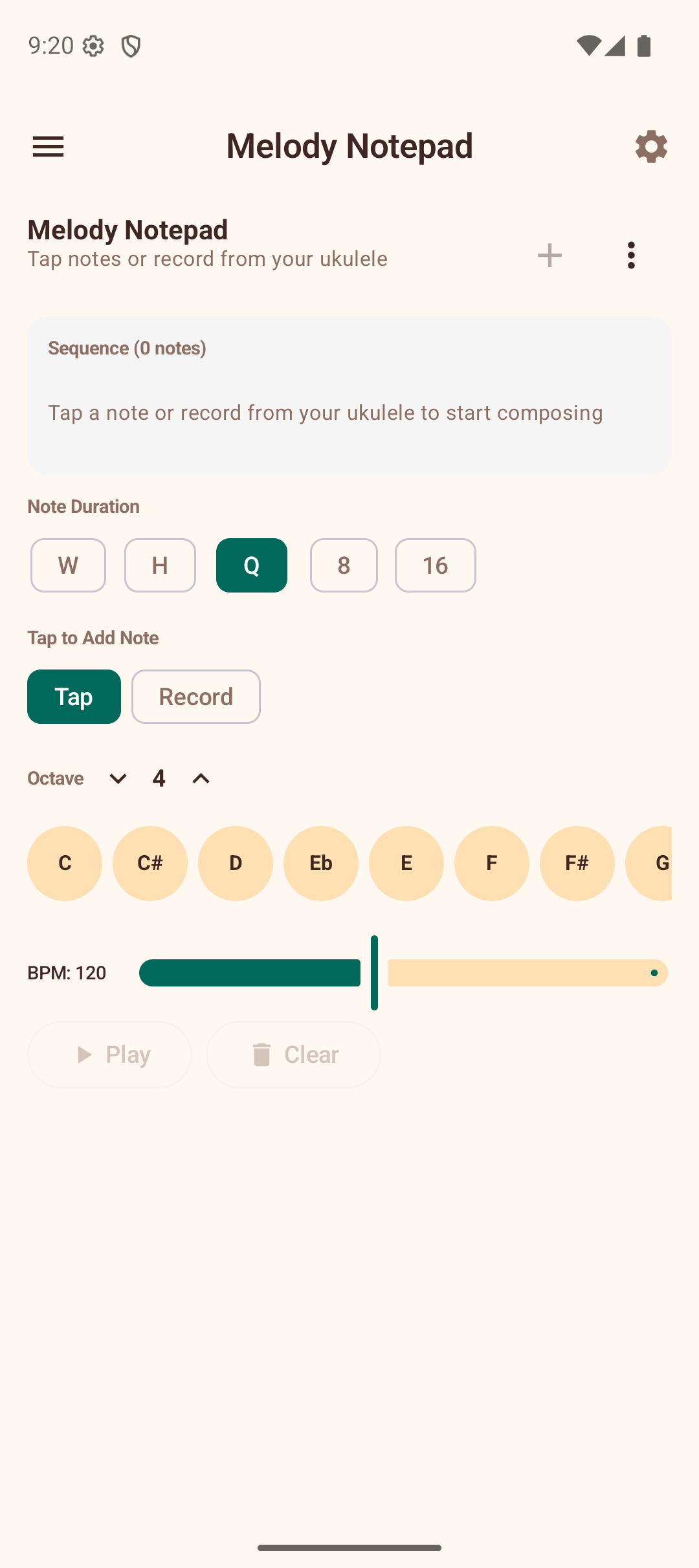
Creating a Melody
Tap Mode
- Select a note duration (Whole, Half, Quarter, Eighth, or Sixteenth) using the duration chips.
- Choose the octave (3-6) using the up/down arrows.
- Tap any of the 12 note buttons (C through B) to add a note to the sequence.
- Tap the Rest button to insert a rest of the selected duration.
Notes appear in the sequence display at the top as colored blocks showing the note name and duration.
Record Mode
- Tap Record to switch to recording mode.
- Tap the microphone button to start listening.
- Play a note on your ukulele — the app detects the pitch and adds it to the sequence once the note stabilizes.
- Continue playing notes to build the melody.
- Tap stop when finished.
Step Sequencer Mode
Toggle from Linear to Step Sequencer mode using the mode switch at the top.
- The sequencer shows a grid of 8 steps by default. Tap the 16 steps button to switch to a 16-step grid; it then becomes an 8 steps button to return to 8.
- Tap any step in the grid to open a pitch picker. Select a note name and octave to assign it to that step.
- Long-press a step to clear it (reset it to silence).
- Tap Play to loop the sequence continuously at the current BPM. The active step is highlighted as it plays.
- Tap Stop to end playback.
The step sequencer is ideal for building rhythmic patterns and loop-based ideas without worrying about note durations — each step has equal timing determined by the BPM.
Editing
- Tap any note in the sequence to select it. The selected note is highlighted.
- Tap the delete icon to remove the selected note.
- The sequence scrolls horizontally if it extends beyond the screen width.
Playback
- Set the BPM using the slider (40-220 BPM).
- Tap Play to hear the melody played back. The current note is highlighted during playback.
- Tap Stop to halt playback.
- Tap Clear to remove all notes from the sequence.
Saving and Loading
Melodies are saved to the device and persist between sessions.
- Tap the save icon or use the menu to Save As with a custom name.
- Use Load to open a previously saved melody from a list.
- Use Rename to change the name of the current melody.
- Use New to start a fresh empty melody (you will be prompted to save unsaved changes).
- Use Delete to permanently remove the current melody.
Tips
- Use Tap mode for precise control over note placement and duration.
- Use Record mode to quickly capture a melody idea by playing it on your ukulele.
- Use Step Sequencer mode for rhythmic patterns and loop-based ideas — great for experimenting with riffs.
- Start with quarter notes for simple melodies, then add eighth and sixteenth notes for faster passages.
- Experiment with different octaves to create melodies that span the full ukulele range.
- In Record mode, if the app picks up unwanted notes from background noise, increase the Noise filtering slider in Settings.
- In the step sequencer, start with 8 steps for short loops and expand to 16 when you need a longer phrase.