Chord Library
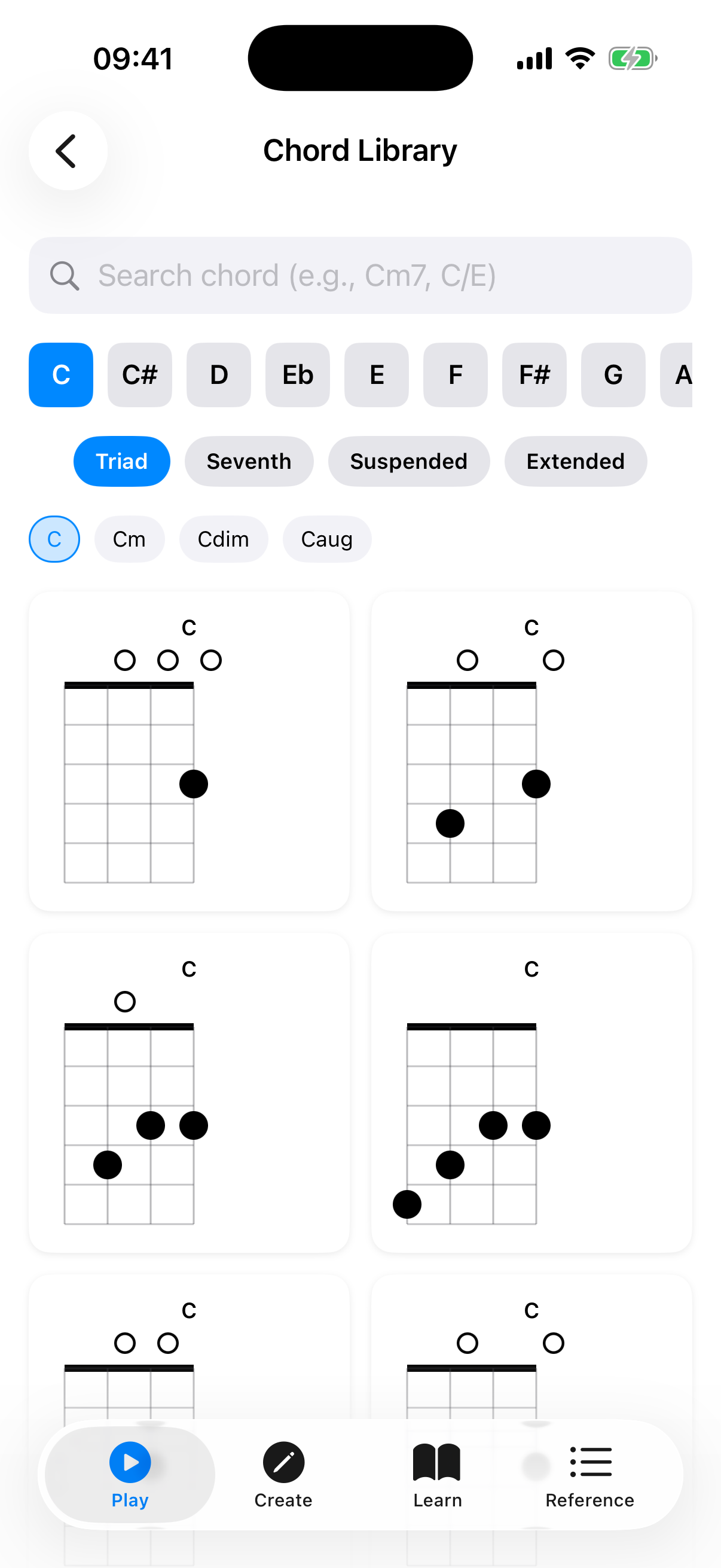
The Chord Library is a comprehensive collection of chord voicings. Browse voicings for any chord by selecting a root note and chord type.
Browsing Chords
The filter controls are grouped under a collapsible Filters header (tap it to expand or collapse). With the filters expanded:
- Select a root note — tap one of the 12 note buttons (C, C#, D, etc.). If you prefer flat names, you can switch this in Settings.
- Transpose — optional + and − buttons shift the selected root up or down by semitones.
- Select a category — choose from Triad, Seventh, Suspended, or Extended.
- Select a chord type — for example, Major, Minor, Dom7, Min7, etc.
The app displays all available voicings as mini fretboard diagrams in a grid.
You can also use the search bar at the top to find a chord directly by name (for example, "Cm7" or "C/E").
Voicing Diagrams
Each voicing card shows:
- Chord name — displayed at the top of the card (e.g., "C", "Am").
- Fret diagram — a vertical mini fretboard showing finger positions, open strings, and muted strings, with a position marker (e.g., "3fr") when the voicing is higher up the neck.
- Favorite button — a heart at the bottom-left to save or manage the voicing in your favorites.
- Share button — a share icon at the bottom-right to export the voicing as an image.
Tap a voicing diagram to load it onto the Explorer fretboard (and hear it played).
Inversion Filters
When a chord type is selected, an Inversions row appears above the voicing grid with filter chips:
- All — shows every voicing with a count (e.g., "All (15)").
- Root, 1st Inv, 2nd Inv, 3rd Inv — each shows how many voicings match. Only inversions that have voicings are listed.
When more than one voicing is shown, a Play all button in the Inversions row plays the filtered voicings in sequence.
Capo Tools
Long-press any voicing card to open its context menu, which offers:
- Share as Image — export the voicing as an image.
- Capo Positions — open the capo calculator to find equivalent voicings with a capo.
- Capo Visualizer — open the capo visualizer for that voicing.
Saving Favorites
Tap the heart icon on any voicing card to open the favorites sheet. From there you can save the voicing, add it to one or more folders, or remove it. A filled red heart indicates a saved voicing.
See Favorites for more about managing your saved voicings.
Accessibility
- Per-string exploration — When using VoiceOver, chord diagrams provide per-string details (note, fret, and role such as bass note or common tone) accessible through the VoiceOver rotor's custom content.
- Share hint — The chord diagram announces a hint that it can be long-pressed to share as an image.
Sharing Voicings
Tap the share icon on any voicing card to export it as an image you can send to others. You can also long-press a chord diagram and choose Share as Image from its context menu.
Playing Voicings
Tapping a voicing diagram loads it onto the Explorer fretboard and plays it back, strummed with the sound settings you have configured (volume, strum delay, note duration). When a chord type shows more than one voicing, use Play all in the Inversions row to hear them in sequence.