Songs
The Songs section is your personal songbook. Create chord sheets with lyrics and inline chord markers, then use them as a reference while playing. Search, sort, label, and batch-manage your songs. Organise them into setlists for gigs, and use Performance Mode for hands-free, full-screen viewing.
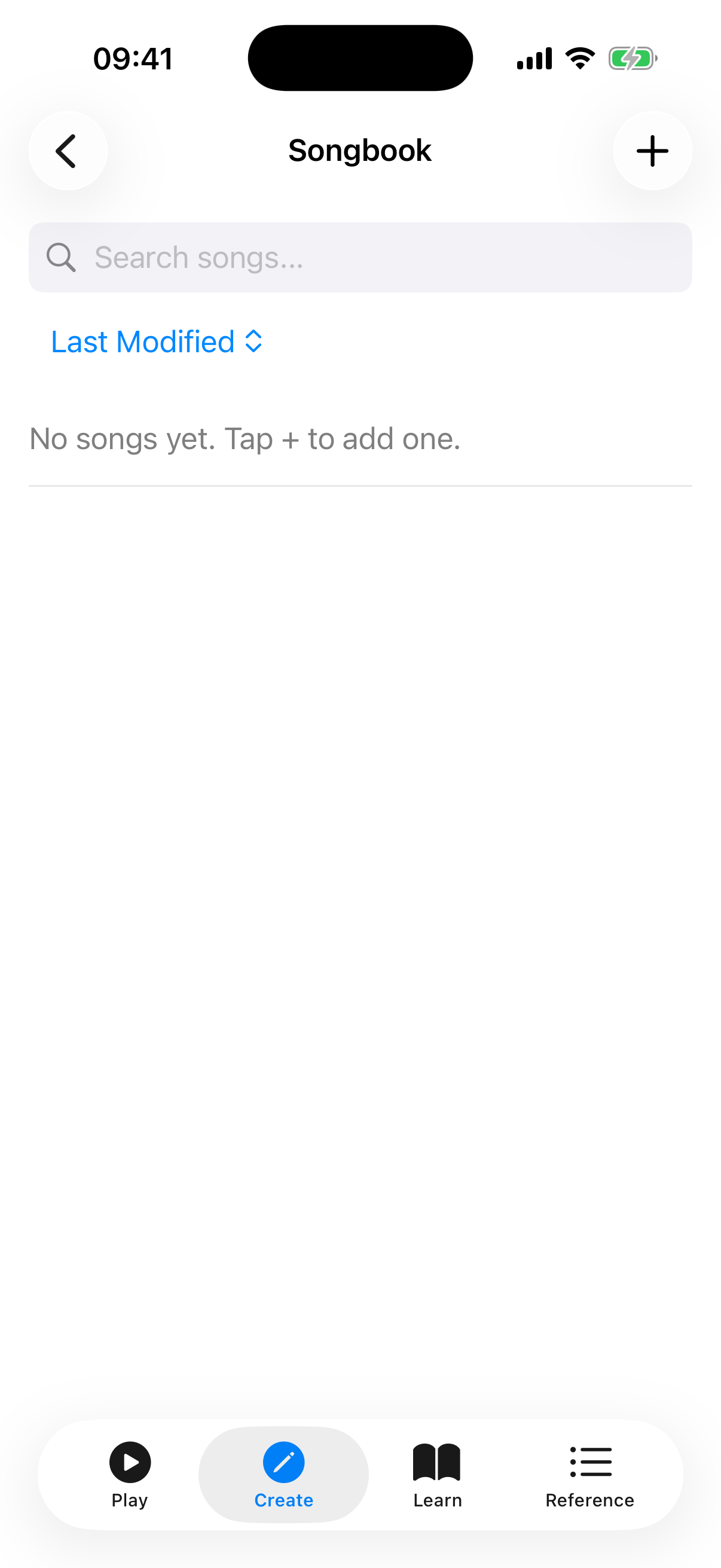
Search and Sort
The song list includes a search bar and a sort menu to help you find songs quickly:
- Search — type any part of a title, artist, or content to filter the list in real time. Tap the clear button to reset.
- Sort — tap the sort icon to choose an ordering: Last Modified, Date Added, Title, or Artist.
Labels
Labels let you categorise songs (e.g., "Beginner", "Jazz", "Campfire") and filter the list by category.
- On song cards — each song displays its labels as small tappable chips. Tap a label chip to filter the list to songs with that label.
- Label filter bar — when labels exist, filter chips appear below the search bar. Tap a chip to toggle it; tap "Clear" to remove the filter.
- Adding labels — in the song editor, the label editor section lets you type a new label or pick from existing ones with auto-suggest. Tap the + icon to confirm. Labels appear as removable chips you can tap to delete.
- In the viewer — labels are shown below the key detection row. Tap the + chip to add a label without entering the editor.
Creating a Chord Sheet
- Tap the + button to create a new song.
- Enter a title and optionally an artist and subtitle.
- Choose a strum pattern to associate with the song (see below).
- Add labels to categorise the song.
- In the content area, type your lyrics with chord markers using square bracket notation:
Some[C]where over the [Em]rainbow
   [F]Way up [C]high
- Use the chord insertion chips (C, G, Am, F, Em, Dm, D, A, E, Bm) above the text field to quickly insert common chords at the cursor.
- Switch between the Edit and Preview tabs to see how chords render above the lyrics in real time.
- Tap Save to add the song to your collection. If you try to leave with unsaved changes, a confirmation dialog appears.
Importing Songs
You can import chord sheets from files on your device or by pasting ChordPro text directly.
Import from File
- Tap the import button in the toolbar and choose Import from file.
- Select a file from your device. The app supports:
- ChordPro files (
.cho,.chordpro,.chopro,.crd,.pro) — parsed automatically with title, artist, subtitle, and chord directives. - Plain text files — imported as-is with the filename used as the title.
- The imported song is added to your collection immediately.
Paste ChordPro Text
- Tap the import button and choose Paste ChordPro text.
- A dialog opens with a text field where you can paste ChordPro-formatted content from the clipboard.
- Tap Import to parse and add the song. The title, artist, and chords are extracted automatically.
This is useful when you have ChordPro text copied from a website or message and want to import it without saving a file first.
Viewing a Chord Sheet
Tap any song in the list to open it. The viewer renders your text with chords displayed on a separate line above the lyrics, aligned with each word.
Tap any chord name in the viewer to open a chord detail panel. The panel shows the chord name, a chord diagram with the voicing, a Play button to hear the chord, and a View in Library link to see all voicings for that chord. This makes it easy to look up and hear unfamiliar chords while practising a song.
Key Detection
The app automatically analyses the chords in your song and displays the detected key (e.g., "Key: C Major") at the top of the viewer. This uses a simplified Krumhansl-Schmuckler algorithm to determine the best-fitting key.
Strum Pattern
Below the key, the viewer shows the associated strum pattern with its notation (e.g., "Island Strum: D DU UDU"). You can change the pattern or remove it directly from the viewer without entering the editor.
Song Statistics
Once a song has been viewed at least once, a statistics row appears showing:
- View count — the number of times you have opened this song.
- Last viewed — a relative timestamp (e.g., "5 minutes ago", "2 days ago").
- Total viewing time — the cumulative time spent viewing the song, displayed in a human-readable format (e.g., "12 min", "1 h 30 min").
Statistics are tracked automatically each time you open or spend time on a song.
Section Navigation
When a song contains section markers (such as Verse, Chorus, Bridge, Intro, or Outro), section chips appear as a horizontally scrollable row below the song metadata. Tap any chip to scroll directly to that section in the viewer. This is especially useful for long songs where you need to jump to a specific part quickly.
Section markers are recognised from ChordPro directives (e.g., {start_of_chorus}) and from bracket-style labels (e.g., [Chorus]).
Font Size Controls
The song viewer includes font size controls to adjust the text to your preferred reading size:
- Tap the A- button to decrease the font size.
- Tap the A+ button to increase the font size.
Your chosen font size is saved automatically and persists between sessions.
Auto-Scroll
The song viewer includes an auto-scroll feature so you can keep both hands on your ukulele while reading lyrics:
- Tap the play button in the toolbar to start auto-scrolling.
- While scrolling, speed controls appear as chips: 0.5x, 1x, 2x, and 3x. Tap a chip to change the scroll speed.
- Tap the pause button to pause auto-scrolling temporarily.
- Tap the stop button to stop auto-scrolling and reset to the top.
- If you manually scroll or swipe the screen while auto-scroll is active, it pauses automatically.
This is especially useful during practice or performance when you cannot tap the screen to scroll manually.
Performance Mode
Tap the fullscreen button (expand icon) in the viewer toolbar to enter Performance Mode. The song displays full-screen on a clean background with no toolbar or other controls.
- Tap the screen to toggle the on-screen controls: auto-scroll play/pause, speed adjustment with - and + buttons (0.5x to 5.0x in fine increments), and an exit button.
- Tap the exit button (collapse icon) to return to the normal viewer.
Performance Mode is ideal for live performance or practice sessions when you want maximum screen space and hands-free scrolling.
Transposing Songs
The song viewer includes transpose controls to shift all chords up or down by semitones. This is helpful when a song is in a key that does not suit your voice or playing style. The original text is preserved — only the displayed chord names change.
When a transposition is active, the app also displays an equivalent capo suggestion. For example, if you transpose up 5 semitones, the app shows "Or use Capo 5 with original chords" — so you can choose whichever approach you prefer.
Save in This Key
If you want to keep the transposed version permanently, tap Save in this key. This rewrites the chord sheet with the new chord names and updates the stored key. The original chords are replaced — use this when you have found the right key and want to commit to it.
Exporting and Sharing
Tap the share button in the song viewer to open the export format picker. Choose one of four options:
- ChordPro (.cho) — generates a ChordPro-formatted file with proper directives (
{title:},{artist:}, section markers) for use in other chord sheet apps. - Plain text — sends the chord sheet as formatted text with chords displayed above lyrics, ready to share via any messaging or sharing app.
- PDF (.pdf) — generates a PDF document with the song title and formatted chord sheet, suitable for printing or sharing as a file.
- Copy to clipboard — copies the formatted chord sheet to the clipboard for quick pasting into messages, notes, or other apps.
If a transposition is active, the exported or copied content uses the transposed chords automatically.
Editing and Deleting
- Tap a song in the list to open the viewer, then tap the edit button (pencil icon) in the toolbar to modify the title, artist, subtitle, strum pattern, labels, or content.
- Tap the duplicate button (copy icon) in the toolbar to create a copy of the song. The duplicate is saved with "(Copy)" appended to the title.
- Tap the delete button (trash icon) in the toolbar to remove a song. A confirmation dialog asks you to confirm before the song is permanently deleted.
- If you have unsaved changes in the editor and try to cancel, a discard changes dialog appears so you do not lose work accidentally.
Batch Operations
You can select multiple songs to perform bulk actions:
- Tap the Select Songs button in the toolbar to enter selection mode.
- Tap songs to select or deselect them — checkboxes appear on each card.
- A selection bar shows the number of selected songs with these actions:
- Select All — selects every song in the list.
- Delete — bulk-deletes all selected songs (with a confirmation dialog).
- Cancel — exits selection mode without making changes.
Batch operations are useful for cleaning up your songbook or removing multiple songs at once.
Metronome Integration
If a song contains a {tempo} directive in its ChordPro content (e.g., {tempo: 120}), the viewer displays the tempo (e.g., "Tempo: 120 BPM") with a Start Metronome button. Tapping the button launches the metronome at the song's BPM automatically, so you can practise with the correct tempo without manually setting it.
Setlists
Setlists are ordered collections of songs for organising gigs, practice sessions, or themed playlists.
Accessing Setlists
Open the Create tab and tap Setlists to view your setlist collection.
Creating a Setlist
- Tap the + button in the toolbar to create a new setlist.
- Enter a name (e.g., "Friday Gig", "Beginner Songs") and tap Create.
Adding Songs to a Setlist
- Open a setlist by tapping it.
- Tap the + button to open the song picker.
- Browse available songs — songs already in the setlist are excluded from the list.
- Tap a song to add it to the setlist.
Reordering Songs
Drag songs using the reorder handle to change their position in the setlist. Songs are numbered to show their order.
Removing Songs
Swipe left on a song to reveal the delete action and remove it from the setlist. The song itself remains in your songbook — only the setlist entry is removed.
Deleting a Setlist
Swipe left on a setlist card to delete it. Songs in the setlist are not affected.
Backup and Restore
Setlists are included in the app's backup and restore data alongside songs, favorites, and other settings.
Tips
- Use the
[ChordName]bracket notation to mark chords anywhere in your lyrics. - Use the chord insertion chips in the editor to speed up chord entry.
- Switch to Preview mode while editing to check chord alignment before saving.
- Auto-scroll at 0.5x or 1x speed is good for slow ballads; try 2x or 3x for faster songs.
- Import ChordPro files from other apps or websites to quickly build your songbook.
- Paste ChordPro text directly when you have content copied from a website or message.
- The capo suggestion makes transposition practical — you can see the easy chord shapes at a glance.
- Label songs by genre, difficulty, or occasion to find them quickly as your collection grows.
- Use Performance Mode during gigs for a clean, distraction-free view with adjustable auto-scroll speed.
- Tap Select Songs to enter batch mode and quickly delete multiple songs at once.
- Create setlists for different occasions to keep your gig repertoire organised.
- Tap any chord in the viewer to see its diagram, hear it played, or jump to the library.
- Songs with
{tempo}directives let you start the metronome at the right BPM with one tap. - Adjust font size with A-/A+ to match your reading distance.
- Export as PDF when you need a printed copy of your chord sheet.
- Duplicate a song to create a variation without losing the original.