Songs
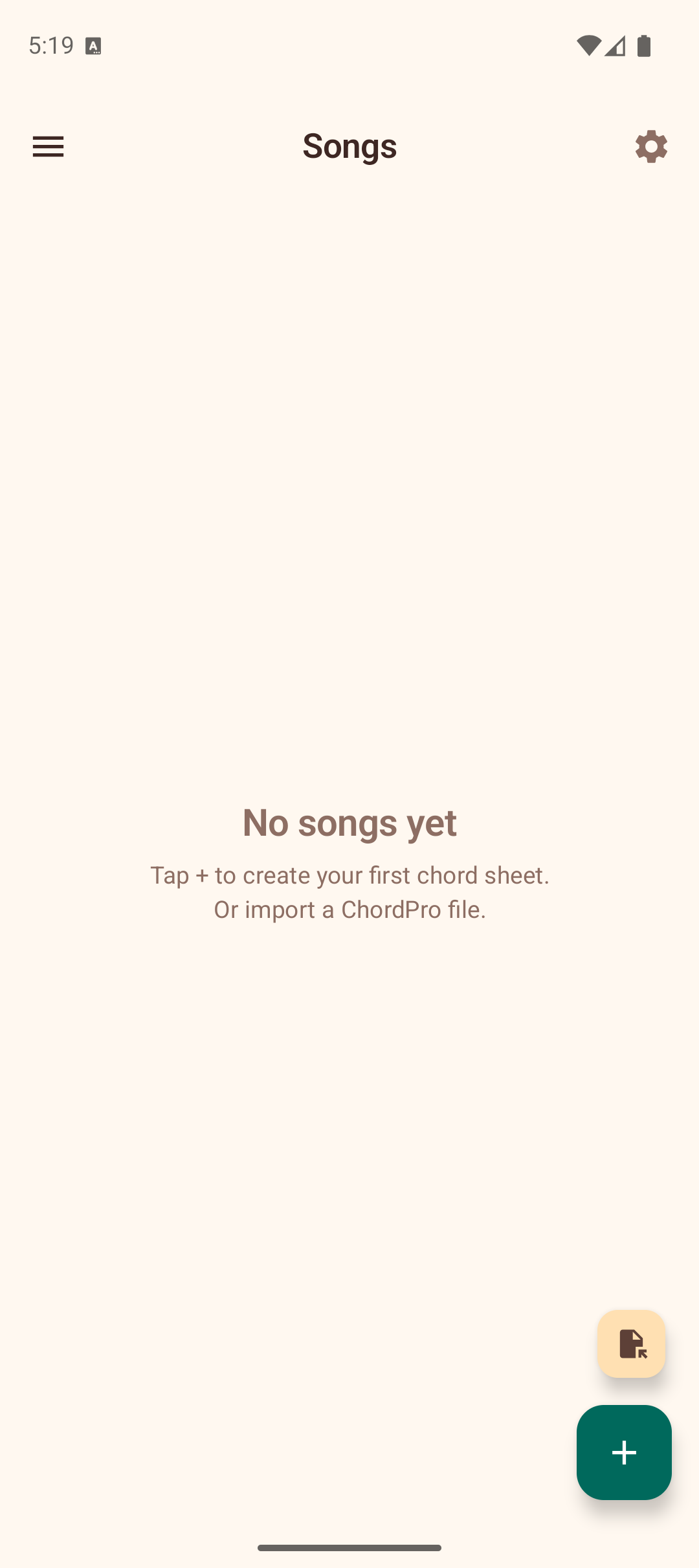
The Songs section is your personal songbook. Create chord sheets with lyrics and inline chord markers, then use them as a reference while playing. Search, sort, and label your songs to keep a growing collection organised.
Search and Sort
The song list includes a search bar and a sort menu to help you find songs quickly:
- Search — type any part of a title, artist, or content to filter the list in real time. Tap the clear button to reset.
- Sort — tap the sort icon to choose an ordering: Last Modified, Date Added, Title, or Artist.
Labels
Labels let you categorise songs (e.g., "Beginner", "Jazz", "Campfire") and filter the list by category.
- On song cards — each song displays its labels as small tappable chips. Tap a label chip to filter the list to songs with that label.
- Label filter bar — when labels exist, filter chips appear below the search bar. Tap a chip to toggle it; tap "Clear" to remove the filter.
- Adding labels — in the song editor, the label editor section lets you type a new label or pick from existing ones with auto-suggest. Tap the + icon to confirm. Labels appear as removable chips you can tap to delete.
- In the viewer — labels are shown below the key detection row. Tap the + chip to add a label without entering the editor.
Creating a Chord Sheet
- Tap the + button to create a new song.
- Enter a title and optionally an artist.
- Choose a strum pattern to associate with the song (see below).
- Add labels to categorise the song.
- In the content area, type your lyrics with chord markers using square bracket notation:
Some[C]where over the [Em]rainbow
   [F]Way up [C]high
- Use the chord insertion chips (C, G, Am, F, Em, Dm, D, A, E, Bm) above the text field to quickly insert common chords at the cursor.
- Switch between the Edit and Preview tabs to see how chords render above the lyrics in real time.
- Tap Save to add the song to your collection. If you try to leave with unsaved changes, a confirmation dialog appears.
Importing Songs
You can import chord sheets from files on your device:
- Tap the import button (file icon) at the bottom of the songs list.
- Select a file from your device. The app supports:
- ChordPro files (
.chopro,.cho,.chordpro) — parsed automatically with title, artist, and chord directives. - Plain text files — imported as-is with the filename used as the title.
- The imported song is added to your collection immediately.
Viewing a Chord Sheet
Tap any song in the list to open it. The viewer renders your text with chords displayed on a separate line above the lyrics, aligned with each word.
Tap any chord name in the viewer to jump directly to its voicings in the Chord Library. This makes it easy to look up unfamiliar chords while practicing a song.
Key Detection
The app automatically analyses the chords in your song and displays the detected key (e.g., "Key: C Major") at the top of the viewer. This uses a simplified Krumhansl–Schmuckler algorithm to determine the best-fitting key.
Strum Pattern
Below the key, the viewer shows the associated strum pattern with its notation (e.g., "Island Strum: D DU UDU"). You can change the pattern or remove it directly from the viewer without entering the editor.
Auto-Scroll
The song viewer includes an auto-scroll feature so you can keep both hands on your ukulele while reading lyrics:
- Tap the play button (floating action button) in the bottom-right corner to start auto-scrolling.
- While scrolling, speed controls appear as chips: 0.5x, 1x, 2x, and 3x. Tap a chip to change the scroll speed.
- Tap the pause button to pause auto-scrolling temporarily.
- Tap the stop button to stop auto-scrolling and reset to the top.
- If you manually scroll or swipe the screen while auto-scroll is active, it pauses automatically.
This is especially useful during practice or performance when you cannot tap the screen to scroll manually.
Transposing Songs
The song viewer includes transpose controls to shift all chords up or down by semitones. This is helpful when a song is in a key that does not suit your voice or playing style. The original text is preserved — only the displayed chord names change.
When a transposition is active, the app also displays an equivalent capo suggestion. For example, if you transpose up 5 semitones, the app shows "Or use Capo 5 with original chords" — so you can choose whichever approach you prefer.
Exporting and Sharing
The share button in the song viewer offers several options:
- Share as text — sends the chord sheet as plain text via any messaging or sharing app.
- Share transposed — shares the chord sheet with the current transposition applied (visible only when a transposition is active).
- Export as ChordPro — generates a ChordPro-formatted file with proper directives (
{title:},{artist:}, section markers) for use in other chord sheet apps. - Export transposed ChordPro — exports with the transposition baked in (visible only when a transposition is active).
Editing and Deleting
- Tap a song in the list to open the viewer, then tap the edit button (pencil icon) in the toolbar to modify the title, artist, strum pattern, labels, or content.
- Tap the delete button (trash icon) in the toolbar to remove a song. A confirmation dialog asks you to confirm before the song is permanently deleted.
- If you have unsaved changes in the editor and try to cancel, a discard changes dialog appears so you do not lose work accidentally.
Tips
- Use the
[ChordName]bracket notation to mark chords anywhere in your lyrics. - Use the chord insertion chips in the editor to speed up chord entry.
- Switch to Preview mode while editing to check chord alignment before saving.
- Auto-scroll at 0.5x or 1x speed is good for slow ballads; try 2x or 3x for faster songs.
- Import ChordPro files from other apps or websites to quickly build your songbook.
- The capo suggestion makes transposition practical — you can see the easy chord shapes at a glance.
- Label songs by genre, difficulty, or occasion to find them quickly as your collection grows.