Favorites
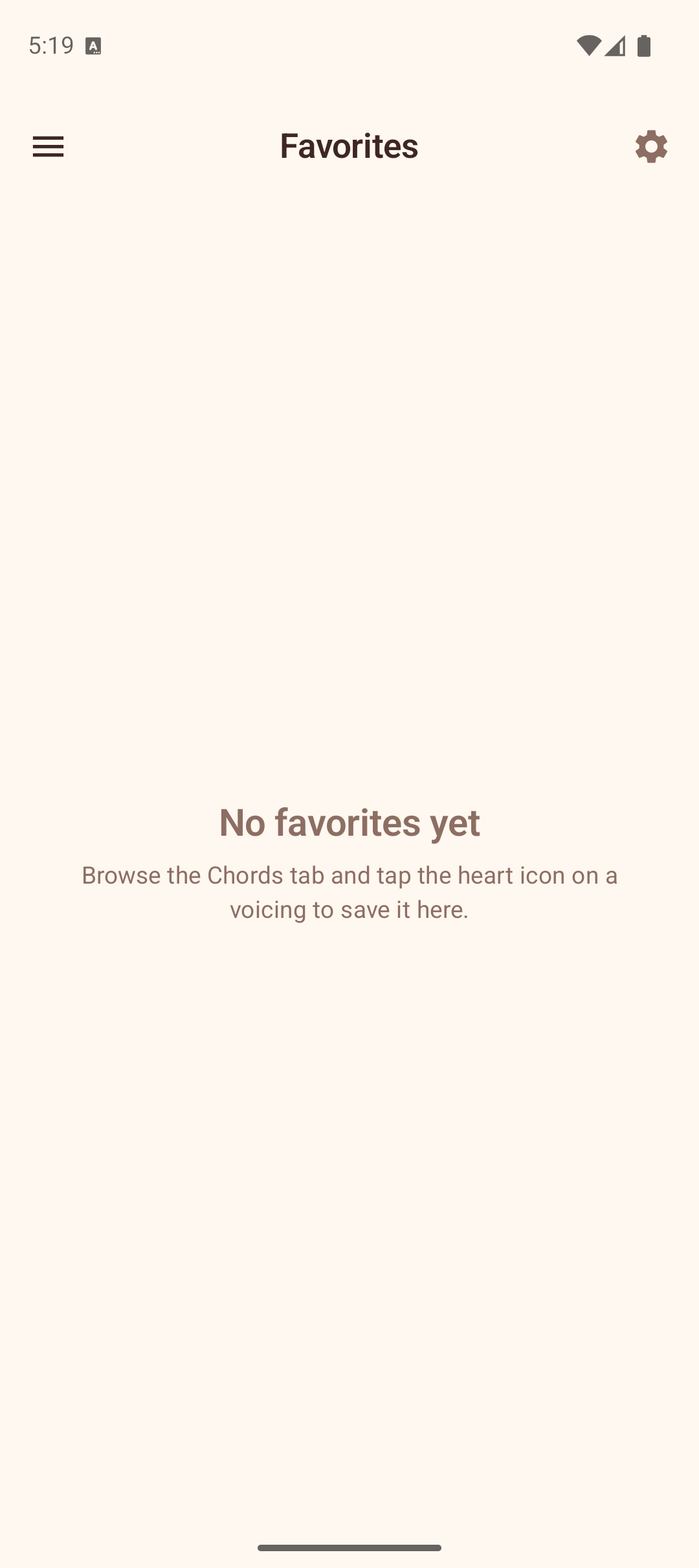
The Favorites section stores your saved chord voicings for quick access. You can organize them into folders for better management.
Saving a Favorite
To save a voicing to your favorites:
- Go to the Chords section.
- Find a voicing you like.
- Long-press the voicing diagram — a heart icon confirms it has been saved.
You can also tap the heart icon on any voicing in the library to toggle it as a favorite.
Viewing Favorites
Open the Favorites section from the navigation drawer. Your saved voicings appear in a grid, showing the chord name and a mini fretboard diagram for each.
- Tap a voicing to load it onto the Explorer fretboard.
- Tap the heart icon on a voicing to remove it from favorites.
Organizing with Folders
Favorites can be organized into folders using the filter chips at the top of the screen:
- All — shows every saved voicing (default).
- Unfiled — shows voicings not assigned to any folder.
- Your folders — each folder you create appears as a chip with the count of voicings inside.
Creating a Folder
- Tap the + chip at the end of the filter row.
- Enter a folder name in the dialog.
- Tap Create.
The new folder appears as a chip in the filter row.
Moving Voicings to a Folder
- Tap the folder icon (small + icon) on any voicing.
- A dialog appears listing all your folders plus "Unfiled".
- Tap a folder name to move the voicing there.
Deleting a Folder
Tap the delete icon on a folder chip. The folder is removed, and all voicings inside it are moved back to "Unfiled". The voicings themselves are not deleted.
Tips
- Use folders to group voicings by song, practice session, or chord type.
- The "All" chip always shows your complete collection regardless of folder assignments.
- Removing a voicing from favorites (via the heart icon) deletes it entirely, while moving it to "Unfiled" keeps it saved.